How to Send Transactional Emails via API: Complete Developer Guide

You made a sale. Your WooCommerce store just processed an order, the payment went through, and your customer is waiting. They’re checking their inbox right now for that order confirmation email.
And it’s not there.
Five minutes pass. Then ten. By the time that confirmation email lands (or doesn’t), your customer is wondering if something went wrong. Support tickets pile up. Trust erodes. Repeat customers don’t come back.
Here’s the thing. This isn’t a WooCommerce problem. It’s a transactional email problem. And according to email marketing statistics, it’s happening on thousands of WordPress stores every single day.
Transactional emails are the most important messages your business sends. Order confirmations, password resets, shipping notifications, account verifications. These aren’t marketing emails you can afford to delay. They need to arrive instantly, reliably, every single time.
You’ll find that most WordPress sites rely on the default PHP mail function, which is like sending important documents through a public mailbox shared with hundreds of other businesses. When one of them sends spam, everyone gets blacklisted. That’s exactly why understanding how to improve email deliverability matters from day one.
This guide walks you through setting up a proper transactional email API for your WordPress site. You’ll learn why default setups fail, how to choose the right provider, and how to implement it in under 30 minutes. No matter your technical level.
Let’s get into it.
Key Takeaways
- Transactional email APIs send automated messages (order confirmations, password resets) instantly via code, unlike bulk marketing emails
- REST APIs outperform SMTP for WordPress: faster (single HTTP request vs handshake), more secure (API keys), better error handling, and no port blocking issues
- Amazon SES offers maximum ROI at $0.10 per 1,000 emails (100,000 emails for $10), but requires more setup than SendGrid or Postmark
- weMail provides WordPress-native transactional email management without external plugins, integrating directly with WooCommerce and your dashboard
- Domain authentication (SPF, DKIM, DMARC) is critical for deliverability and preventing emails from landing in spam
What You’ll Learn in This Guide
This comprehensive developer guide covers everything you need to implement a reliable transactional email API for your WordPress site:
- What transactional emails are and why they require dedicated API infrastructure
- How SMTP compares to REST APIs for email delivery (speed, security, reliability)
- Which transactional email provider offers the best ROI for your use case
- Two methods to integrate email APIs with WordPress (plugin-based and custom code)
- How to use weMail for WordPress-native transactional email management
- WooCommerce-specific configuration and testing procedures
- Domain authentication best practices (SPF, DKIM, DMARC) for maximum deliverability
What Transactional Emails Actually Are (And Why They Matter)
Transactional emails are automated messages triggered by specific user actions. Someone buys a product, they get an order confirmation. Someone requests a password reset, they get a reset link. Someone creates an account, they get a welcome email.
These are one-to-one messages, not bulk marketing blasts. They contain time-sensitive, critical information. Your customer expects them immediately.
Think about your own experience. When you order something online, you check your inbox within seconds. If that confirmation doesn’t arrive, you start wondering. Did the payment go through? Did I enter the right email? Should I contact support?
That uncertainty is exactly what kills trust. And for WooCommerce store owners, it creates a support nightmare. If you’re running a WooCommerce store, this is one of the first things you should fix.
The default WordPress setup uses PHP’s mail() function, which routes through your web host’s server. Shared hosting environments send mail for hundreds of sites from the same IP address. When one site sends spam (and they always do), the entire IP gets flagged. Suddenly your legitimate WooCommerce emails are landing in spam folders or getting blocked entirely. You can learn more about spam traps and how they affect your sender reputation.
A dedicated transactional email API bypasses this completely. It routes your emails through specialized infrastructure designed for high deliverability. Your messages get dedicated IP addresses, proper authentication, and real-time delivery monitoring.
SMTP vs API: Which Approach Works Better
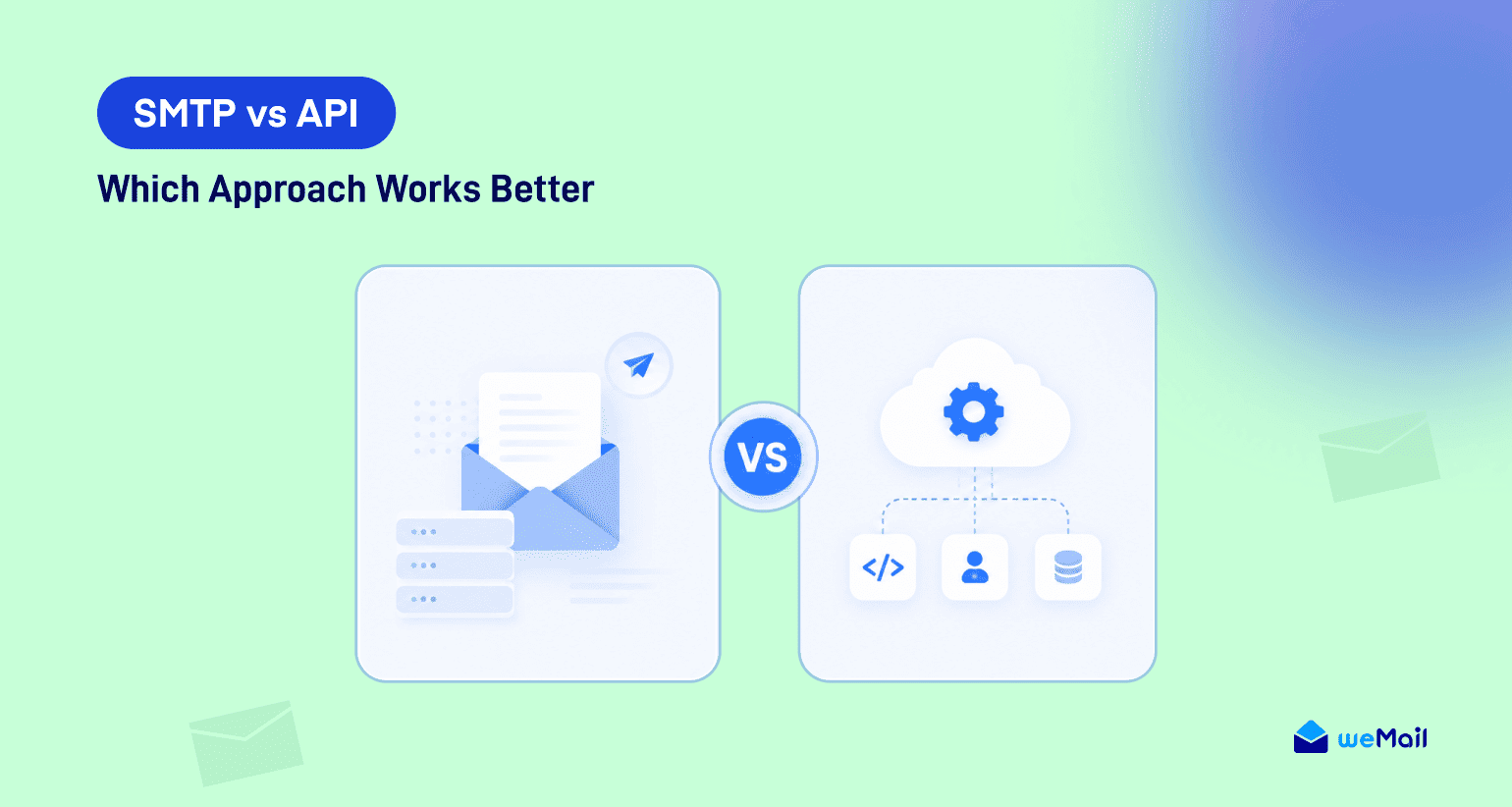
You have two main options for connecting WordPress to an external email service. SMTP (Simple Mail Transfer Protocol) or a modern REST API. Both get the job done, but they work very differently under the hood.
SMTP is the older protocol. It requires a persistent connection handshake between your server and the mail server. That handshake creates overhead, which slows down your WordPress page execution. Every email sent means your server waits for the SMTP conversation to complete before moving on.
A REST API uses standard HTTP requests. Your server sends a JSON payload to the provider’s endpoint, and the provider handles delivery from there. It’s faster, more reliable, and gives you better error reporting.
Here’s a practical comparison:
| Feature | SMTP Protocol | REST Email API |
|---|---|---|
| Protocol | TCP/SMTP (Ports 25, 465, 587) | HTTPS (Port 443) |
| Speed | Slower (multi-step handshake) | Fast (single HTTP POST) |
| Security | Standard authentication | API tokens (more secure) |
| Error Handling | Limited SMTP codes | Detailed JSON responses |
| Port Blocking | Common (ISPs block 25/587) | Rare (443 always open) |
You’ll find that REST APIs are the better choice for modern WordPress setups. They handle network issues more gracefully, provide detailed error messages, and run on port 443, which means you won’t run into firewall issues that commonly block SMTP ports.
The only reason to use SMTP is if you’re working with legacy systems that don’t support HTTP integrations. For everything else, stick with the API. If you want a deeper comparison, check out our list of the best SMTP services for WordPress.
Choosing the Right Transactional Email Provider

There are several solid options in the transactional email space. Each has different pricing, features, and setup complexity. Here’s what you need to know about the major players.
Amazon SES is the cost leader. At $0.10 per 1,000 emails, you can send 100,000 emails for ten dollars. If you’re running a high-volume WooCommerce store, this is where you’ll find the best ROI. The catch? Setup is more complex. You need to request production access, verify domains, and manage your own reputation. It can take a few days to get approved.
SendGrid offers a free tier (100 emails/day) and solid WordPress plugin integrations. Pricing starts at $19.95/month for 50,000 emails. Good middle ground if you want something easier to set up than SES. You can explore more options in our guide to the best email marketing tools.
Mailgun is developer-focused with detailed logging and analytics. No free tier, but pay-as-you-go pricing at $15/month for 50,000 emails. Popular with teams that need granular control.
Postmark focuses on speed and reliability. They keep marketing emails off their transactional servers, which means faster delivery for time-sensitive messages. Pricing is $15/month for 10,000 emails. More expensive per email, but excellent for critical communications.
For most WooCommerce stores, I recommend starting with Amazon SES if you’re comfortable with the setup, or SendGrid if you want something simpler. You can always migrate later.
Setting Up Transactional Emails in WordPress
Let’s walk through the two most common approaches. The plugin method (no code required) and the custom code method (for developers who want full control).

Method 1: Using WP Mail SMTP (The Quick Setup)
If you want to get this done in five minutes without touching code, the WP Mail SMTP plugin is the standard approach. It replaces WordPress’s default mail function and routes everything through your chosen provider.
Install the plugin from the WordPress repository, activate it, and navigate to the settings page. Select your provider from the list (SendGrid, Mailgun, etc.), paste in your API key, and save. If you’re comparing options, our breakdown of the best WordPress email marketing plugins covers the top choices.
Run a test email from the plugin’s tools tab. If it arrives in your inbox, you’re done. Every email WordPress sends (including WooCommerce order confirmations) now routes through your transactional email provider.
This method works well for most stores. It handles all the background routing automatically, and you don’t need to maintain any custom code.
Method 2: Custom PHP Implementation (For Developers)
If you want absolute control over how emails are sent, you can write a custom function that overrides WordPress’s default mail behavior. Here’s a basic implementation using cURL:
add_filter( 'wp_mail', 'custom_transactional_email' );

function custom_transactional_email( $args ) {
    $api_url = 'https://api.yourprovider.com/v3/messages';
    $api_key = 'your_api_key_here';

    $payload = array(
        'to'      => $args['to'],
        'subject' => $args['subject'],
        'html'    => $args['message'],
        'from'    => '[email protected]',
    );

    $response = wp_remote_post( $api_url, array(
        'headers' => array(
            'Content-Type' => 'application/json',
            'Authorization' => 'Bearer *** ,
        ),
        'body' => json_encode( $payload ),
    ) );

    return $args;
}
This hooks into WordPress’s mail system and routes everything through your API. You can add error handling, logging, and custom logic as needed.
For a more comprehensive solution that handles both transactional and marketing emails, weMail integrates directly with your WordPress dashboard and provides a unified interface for managing all your email communications. It keeps everything native to WordPress without adding bloat.
Sending Transactional Emails with weMail (The WordPress-Native Way)
Here is where things get interesting. You do not need five different plugins to handle transactional emails, marketing campaigns, and WooCommerce notifications. weMail brings all of this into a single WordPress dashboard.
weMail connects directly to your preferred email gateway (Amazon SES, SendGrid, Mailgun, Postmark, SparkPost, or SMTP) and routes every outgoing email through it. That includes WooCommerce order confirmations, password resets, form notifications, and your marketing campaigns. One plugin. One gateway. One place to monitor everything.
Step 1: Connect Your Email Gateway
Navigate to weMail → Settings → Email in your WordPress dashboard. You will see a list of supported gateways. Pick the one that fits your budget and volume.
For Amazon SES (the most cost-effective option), you will need your AWS Access Key and Secret Key. Paste them in, hit Save Changes, and click Send a Test Email to confirm everything works.
For SendGrid, Mailgun, or Postmark, you just need the API key from your provider account. The setup takes about two minutes.
Step 2: Connect WooCommerce
Go to weMail → Settings → WooCommerce and click Connect with WooCommerce. Select the subscriber list you want to sync with your store. Enable syncing for existing customer data if you already have orders in your system.
Once connected, weMail automatically captures customer information, order details, and purchase history. This data powers both your transactional email routing and your marketing segmentation.
Step 3: Transactional Emails Work Automatically
After you configure the gateway, weMail takes over the wp_mail() function. Every email WordPress sends, including all WooCommerce transactional emails, now routes through your connected gateway.
That means your order confirmations, processing notifications, completed order emails, refund alerts, and password reset links all go through Amazon SES (or whichever gateway you chose). No extra configuration needed for each email type.
You can verify this by placing a test order. Check the delivery speed and confirm the email lands in the inbox, not spam.
Using the weMail API for Programmatic Control
If you need to manage transactional email lists, subscribers, or tags programmatically, weMail provides a REST API right inside your WordPress installation.
Base URL:
https://yourdomain.com/wp-json/wemail/v1/Authentication: Generate an API key from weMail → Settings → API Keys. Include it in the request header:
X-API-KEY: your-wemail-api-keyHere is a PHP example that adds a subscriber to a list after a purchase, which you can hook into WooCommerce order completion:
add_action( 'woocommerce_order_status_completed', 'add_customer_to_wemail_list' );

function add_customer_to_wemail_list( $order_id ) {
    $order = wc_get_order( $order_id );
    $email = $order->get_billing_email();
    $name  = $order->get_billing_first_name();
    $list_id = 'your-list-id-here';

    $response = wp_remote_post(
        home_url( '/wp-json/wemail/v1/lists/' . $list_id . '/subscribers' ),
        array(
            'headers' => array(
                'Content-Type' => 'application/json',
                'X-API-KEY'    => 'your-wemail-api-key',
            ),
            'body' => json_encode( array(
                'email' => $email,
                'name'  => $name,
            ) ),
        )
    );
}
This is just one example. The weMail API also supports retrieving subscriber tags, managing lists, fetching campaign data, and more. Check the weMail Developer Documentation for the full endpoint reference.
Why This Approach Beats Plugin Stacking
Many WordPress stores end up with WP Mail SMTP for transactional emails, a separate plugin for marketing campaigns, and another tool for WooCommerce-specific notifications. That is three plugins doing overlapping jobs, each with its own settings page and its own idea of how emails should be sent.
weMail consolidates this into one workflow. Your transactional emails and marketing emails share the same gateway, the same sender reputation, and the same analytics. When you need to scale, you upgrade your gateway plan, not your plugin stack.
WooCommerce-Specific Configuration
WooCommerce generates a high volume of transactional emails. Every order status change triggers a notification. New order, processing, completed, refunded. If these fail, your support queue fills up fast.
Once your transactional email API is configured (either through WP Mail SMTP or custom code), WooCommerce automatically routes its emails through it. This happens because WooCommerce uses WordPress’s standard wp_mail() function under the hood.
If you’re also looking to set up WooCommerce email automation workflows, getting your transactional email infrastructure right is the first step. Without reliable delivery, even the best automation triggers won’t reach your customers.
Here’s what you need to verify:
- Navigate to WooCommerce > Settings > Emails in your WordPress dashboard
- Review the list of active email templates (New Order, Processing, Completed, etc.)
- Click “Manage” next to each template to verify sender and recipient details
- Customize email subjects and headings to match your branding
- Place a test order and verify delivery timing
Test deliverability before going live. Use a tool like Mailtrap or place a real test order with your personal email address. Check the delivery time and verify the email didn’t land in spam.
If test emails go to spam, your domain authentication is likely misconfigured. Let’s fix that next.

Domain Authentication and Deliverability Best Practices
Setting up the API is only half the battle. To keep your emails out of spam folders, you need proper domain authentication. This means configuring SPF, DKIM, and DMARC records in your DNS. If you’re not sure what DKIM is, our guide on what is DKIM in email marketing breaks it down.
SPF (Sender Policy Framework) is a DNS text record that lists which servers are authorized to send email from your domain. Your transactional email provider will give you the exact SPF record to add.
DKIM (DomainKeys Identified Mail) adds a digital signature to your outgoing emails. This proves the message wasn’t tampered with during transit. Your provider generates a DKIM key pair and gives you the DNS record to add.
DMARC tells receiving mail servers what to do if an email fails SPF or DKIM checks. Start with a policy of “none” (monitoring mode), then move to “quarantine” or “reject” once you’re confident in your setup.
You’ll find that most transactional email providers have step-by-step guides for configuring these records. Amazon SES, SendGrid, and Mailgun all provide detailed documentation. For a broader look at deliverability, check out our guide on how to reduce email bounce rate.

Subscribe for email
marketing hacks, free
ebooks, and product updates
Beyond authentication, monitor your delivery with webhooks. Most providers can send real-time notifications when emails are delivered, opened, or bounced. Use this data to clean your email list automatically. Hard bounces should flag the user account immediately to protect your sender reputation. You can also set up a suppression list to prevent repeated sends to failed addresses.
Once your infrastructure is solid, focus on improving engagement. Higher email open rates and better click-through rates signal to mailbox providers that your emails are wanted, which further improves deliverability.
For more on avoiding common pitfalls, take a look at these email marketing mistakes to avoid.
Frequently Asked Questions
Can I use a free transactional email API for WooCommerce?
Yes, several providers offer free tiers. SendGrid offers 100 free emails per day, Postmark gives you 100 per month. For a busy WooCommerce store, you’ll outgrow these quickly and need a paid plan. Amazon SES is the most cost-effective option at scale.
What’s the difference between SMTP and an email API?
SMTP is an older protocol that requires a persistent connection handshake, which slows down page execution. An email API uses standard HTTP requests, which are faster and provide better error reporting. For modern WordPress setups, REST APIs are the better choice.
Why are my WooCommerce emails going to spam?
This usually happens because your domain lacks proper authentication records (SPF, DKIM, DMARC) or you’re using default WordPress mail, which runs on shared server IPs with poor reputations. Configure domain authentication and switch to a dedicated transactional email provider to fix this.
How much does Amazon SES cost for WooCommerce?
Amazon SES charges $0.10 per 1,000 emails. If your store sends 50,000 transactional emails per month, that’s just $5. Compare that to $20-30 charged by other providers. Over a year, the savings are significant.
Do I need technical skills to set up transactional email?
Not if you use a plugin like WP Mail SMTP. The setup takes about five minutes and requires no coding. You install the plugin, select your provider, paste in your API key, and you’re done. For custom implementations, basic PHP knowledge helps but isn’t required.
Your Transactional Emails Should Work as Hard as Your Store
Setting up a proper transactional email API is one of the highest-impact upgrades you can make for your WordPress site. It ensures that order confirmations, password resets, and shipping notifications arrive instantly. Your customers stay informed, your support queue stays manageable, and your store builds trust with every automated message.
If you want the best cost-to-performance ratio, Amazon SES is hard to beat. If you want simplicity, plugins and specialized APIs will save you time. Either way, you’re moving away from the unreliable default setup that’s probably costing you customers right now.
Ready to take your email infrastructure to the next level? weMail gives you a WordPress-native platform for managing both transactional and marketing emails from a single dashboard. No external tools, no growing monthly fees, just clean email marketing that keeps everything inside WordPress where it belongs.
Get started with weMail today and see how much easier email management can be.
Subscribe for email marketing
hacks, free ebooks, and
product updates